
The screenshots of this manual come from a client deployment, the unit that Coarobo delivered to ATR-Promotions for its booth, as an example. The topics and the products that Yumemi offers in them are those of ATR-Promotions, and the tablet of your site shows its own.
Product Overview
Coarobo Heartbeat is Yumemi, an avatar who greets visitors and answers their questions aloud from the knowledge that Coarobo prepared for your site. Everything runs on the tablet alone, with no network and no operator, and she can make mistakes, as the red notice on the screen says.
Daily Routine
- In the morning, press the power button and wait until Heartbeat starts by itself once Android has started.
- When Android shows its red dialog that the app is pinned, in Japanese, the language of the system, tap OK, which pins Heartbeat on the screen, as Kiosk Mode & Screen Pinning explains.
- Check that Yumemi stands on the screen with the small red notice under her, and ask her a question in front of the tablet to check that she answers.
- If the large notice Under maintenance covers her, turn the maintenance mode Off with the PIN, as Maintenance Mode & Settings explains.
- In the evening, switch the tablet off with its power button.
During the day the tablet needs nobody, and the app starts again by itself about a minute after a crash. To keep visitors away from Yumemi for a while, such as when you work around the tablet, turn the maintenance mode On, which needs no PIN.
Visitor Conversation
- Yumemi notices someone who looks at her from about 5 m away, greets them, and invites them to talk or to tap.
- Stand within about 2 m of the tablet, look at Yumemi, and speak in the language of the screen, Japanese or English.
- Yumemi listens only while someone faces her, and hears nothing while she speaks.
- Say "Speak English" or "Speak Japanese" to switch the language, or tap the language button.
- A touch on the screen interrupts her while she speaks.
- Tap the hint at the bottom of the screen to ask the question that the hint shows.
- In a noisy place, choose Touch only from the Hearing button, as Touch Only Talk explains.
The buttons at the top of the screen act on a single tap, from left to right.
| Button | What it controls |
|---|---|
| Language | Japanese or English, for the screen and her hearing |
| Outfit and twin | Her outfits, and her twin, a girl or a boy |
| Tools | Shortcut questions about her and about your site |
| Motions | Her motions, played on demand |
| Workspace | The pages and the product cards of your site |
| Windows | What she sees, hears, and thinks, shown or hidden |
| Theme | A light or a dark screen |
| Hearing | Voice and touch, or touch only for a noisy place |
| Volume | The level of her voice, or mute |
| Tour | Her tour of Heartbeat for visitors, or the staff guide |
| Settings | The settings of Maintenance Mode & Settings |
The Staff guide of the Tour button has Yumemi explain how to run the tablet in ten steps, in the language of the screen, from the morning start to the PIN and the simple recoveries.
Touch Only Talk
Where a place is too noisy for her hearing, such as near a loud air conditioner, Yumemi can work by touch alone, so a visitor never has to speak.
- Choose Touch only from the Hearing button, and Voice and touch to have her listen again.
- The choice stays after the app or the tablet starts again.
- When someone stands in front of the tablet, or after a tap on the screen or on the Tools button, her joined hands offer up to six topics of your site.
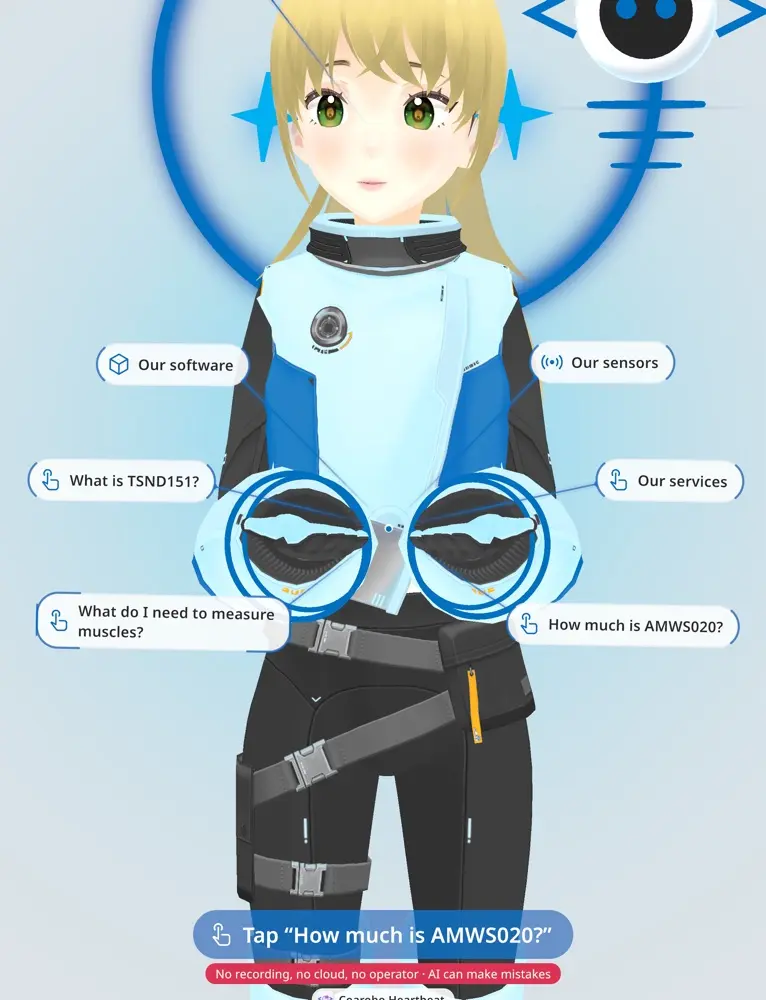
- After each answer they offer up to five questions to ask next, some of them written by her language model and marked with the icon of her thinking, and always a last choice, That is all, thanks, which ends the talk with a goodbye.
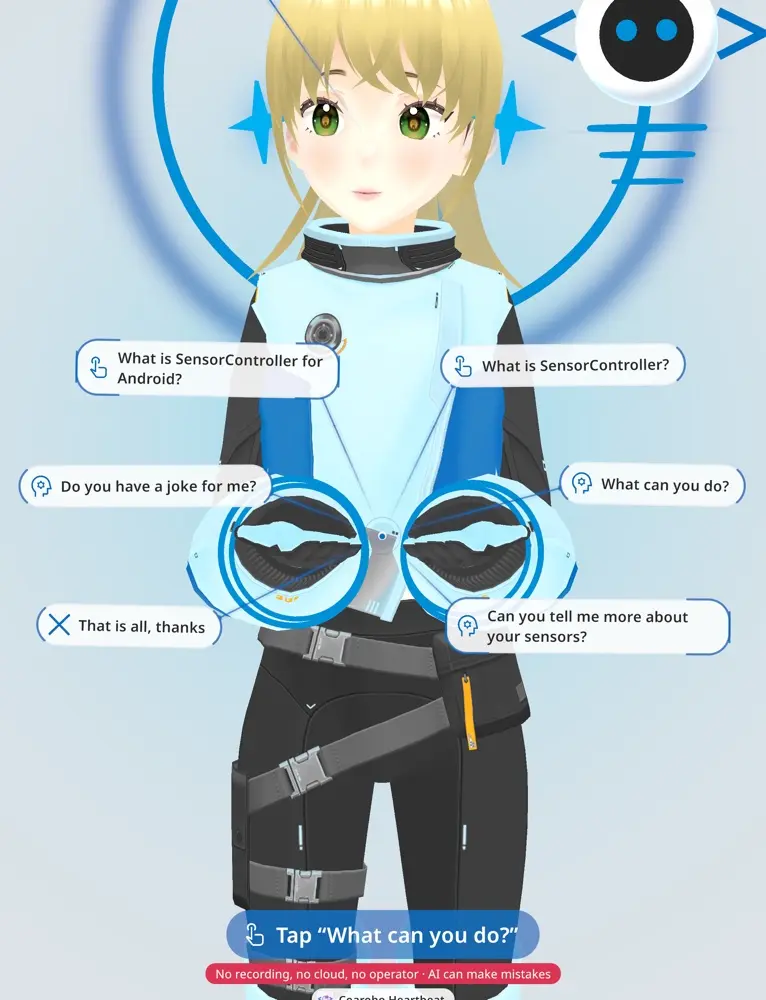
- She puts her choices away after about 25 s without a tap, with a goodbye to a visitor who chose something, and offers her topics again about 15 s later to someone who still stands there.
Yumemi's Knowledge
- Yumemi knows what Coarobo prepared for your site, such as your products and services, and about herself and Coarobo Heartbeat.
- She gives the time and the date from the clock of the tablet.
- She has no network, so she knows nothing that happened after Coarobo prepared her knowledge, and Coarobo updates it with the app.
- When she does not know an answer, she says so or sends the visitor to your staff, and she may still be wrong, as the red notice says.
Maintenance Mode & Settings
The maintenance mode shows a large red notice, Under maintenance, and keeps visitors from using Yumemi while you work around the tablet.
- Press and hold the top left corner of the screen for about 1.2 s, where a gray mark sits, until the ring under your finger closes and the settings open.
- On the System page, turn Maintenance mode of the App Settings card On or Off.
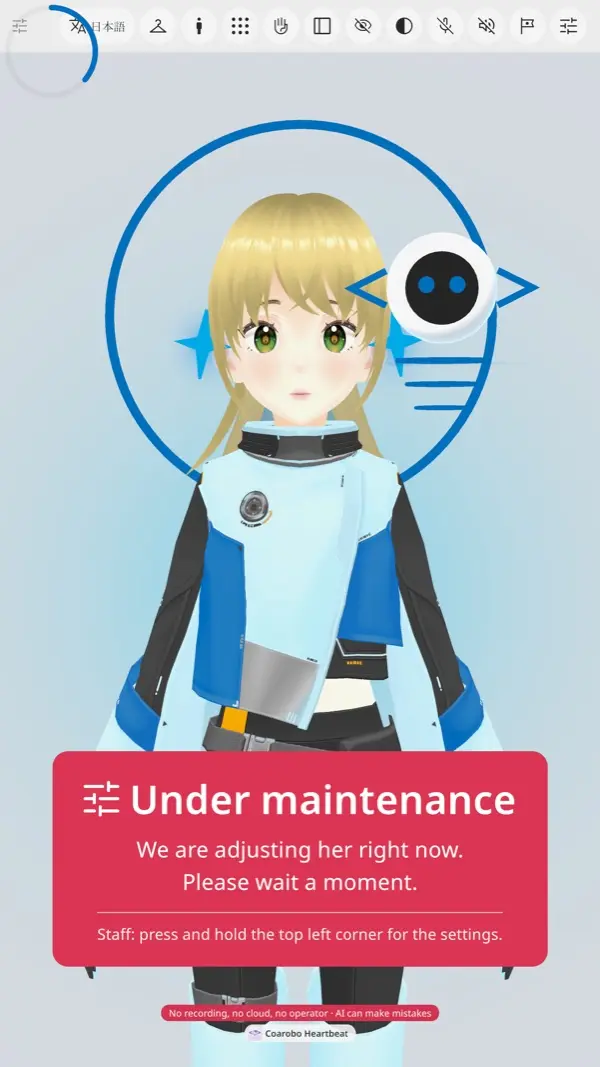
- Turning the maintenance mode On needs no PIN, and turning it Off asks for the PIN of Heartbeat, as Heartbeat PIN explains.
- The App Settings card also holds Outfit and twin changes, off at delivery, which has Yumemi change her outfit and her twin by herself about every hour.
- Under maintenance the buttons at the top take no touch, and the notice reminds the staff of the long press in a smaller line at its bottom.
- The settings close by themselves after a minute without a touch, or with a tap on the screen above them.
- A wrong PIN shows Wrong PIN, and Cancel closes the card with nothing changed.
- The keyboard of Android may stay on the screen after the card of the PIN closes, and the arrow at its bottom left hides it.
Kiosk Mode & Screen Pinning
The Kiosk Mode card of the System page holds two switches, which Coarobo turns on at delivery so the tablet runs with nobody beside it.
- Start by itself opens Heartbeat once the tablet has started, and again about a minute after a crash.
- Screen pinning asks Android to pin Heartbeat on the screen, so a visitor cannot swipe to the home screen or to other apps.
- Each time Heartbeat starts, in the morning or after a restart, Android shows its own red dialog that the app is pinned, and the pin begins only once a person taps OK.
- The dialog comes from Android and not from Heartbeat, so it cannot be skipped, and it looks the same in any app that pins its screen.
- Tapping its other button, No, leaves Heartbeat running without the pin, and the dialog comes back at the next start.
- To end the pin, swipe up from the bottom edge and hold, as the dialog says, which needs no code, since the tablet has no screen lock.
- Switching the tablet off also ends the pin, so the staff never need to end it by hand.
- Once a person leaves Heartbeat on purpose, it stays closed until someone taps its icon or the tablet starts again.
Heartbeat PIN
- The tablet has no screen lock of Android, so it starts with no code.
- Heartbeat has its own PIN, a number of six digits that Coarobo gives you at delivery.
- Heartbeat asks it before it ends the maintenance mode, changes a switch of the Kiosk Mode card, or changes the profile of the site.
- Keep the PIN among the staff, since anyone who knows it can change these settings.
Visitor Privacy
- The camera only finds movement and faces, never who a person is, and Heartbeat keeps no image, records no sound, and sends nothing outside the tablet.
- Her voice, her hearing, and her language model all run on the tablet, so neither what visitors say nor her answers leave it.
- The small red notice at the bottom of the screen says so to visitors: No recording, no cloud, no operator, and AI can make mistakes, in the language of the screen.
- Android shows its green indicators while the camera and the microphone are in use, and no app can hide them.
- Put up a notice beside the tablet which says that a camera and a microphone are in use.
Simple Recoveries
| What you see | What to do |
|---|---|
| The home screen of Android | Tap the Coarobo Heartbeat icon |
| No Heartbeat after the tablet starts | Tap the Coarobo Heartbeat icon once, which an app stopped in the settings needs |
| The red notice Under maintenance | Turn Maintenance mode Off, with the PIN |
| The red dialog that the app is pinned | Tap OK |
| No answer from Yumemi | Step closer, look at her, and check the volume button |
| Her voice too quiet or too loud | Choose a level with the volume button at the top, from 25 %, where she starts, to 100 % |
| Answers to words nobody said, or visitors cut short | Choose Touch only from the Hearing button |
| Yumemi stays upright or sideways as the tablet turns | Turn on the auto-rotate of Android, which Heartbeat follows |
While it runs, Heartbeat holds the volume of the tablet at half its maximum and sets it back after a press of its volume keys, so set the level of her voice with the volume button at the top of the screen.
Tablet Hardware
- The tablet is a KTC MEGAPAD A32Q7 MAX, a 31.5 inch Android display with a built-in battery and a remote control, which comes with Heartbeat as one package.
- The tablet charges through its power port at 19 V and 4.74 A (90 W), and its manual gives an operating range of 0 °C to 40 °C.
- Heartbeat slows its drawing by itself as the tablet heats, so it needs no setting for the heat.
- KTC, the maker of the tablet, gives a warranty of 1 year on the body from the date of purchase, with its support at https://jp.ktcplay.com and support@ktcplay.com .
Coarobo does no maintenance or repair of the tablet itself. For a fault of the hardware, such as the screen, the battery, the charger, the speakers, the camera, or the remote control, contact KTC directly under its warranty of 1 year. Contact Coarobo for everything about Heartbeat, as the last section explains.
Factory Setting Changes
Coarobo changed only the settings below, and everything else is as the tablet came from its maker.
- The system software of KTC was updated to version
V1.3.0at the first start. - The language of the system is Japanese.
- The tablet was connected to Wi-Fi once for the setup, and Heartbeat itself needs no network afterwards.
- The remote control is paired with the tablet.
- No Google account is signed in.
- The tablet has no screen lock, so the app can start by itself after the tablet is switched on.
- The screen timeout is set to never and the screen saver is turned off, so the screen stays on and nothing covers the app.
- The dark theme of Android follows sunset and sunrise, and Heartbeat follows the theme of Android, which Android switches only when the screen turns off or the tablet starts.
- The developer options are turned on, with USB debugging and wireless debugging paired to the computer of Coarobo, which is how Coarobo installs and updates the app.
- Coarobo Heartbeat is installed, allowed to use the camera and the microphone and to display over other apps, which lets it start by itself, and set to start by itself and to pin its screen.
- The Japanese offline speech recognition of Android (Android System Intelligence) and the Japanese voices of Speech Services by Google are installed, so Yumemi hears and speaks without a network.
While it runs, Heartbeat also mutes the notification sounds, holds the media volume at half its maximum, and keeps its screen at full brightness, and the tablet gets its own settings back when the app leaves.
Coarobo Contact
Write to Coarobo at info@coarobo.com about Heartbeat, such as when Yumemi does not come back after a minute, when the home screen shows several times a day, or when a dialog of Android other than the pinning one stays on the screen. A fault of the tablet itself goes to KTC, as Tablet Hardware explains. The website of Coarobo is https://coarobo.com .